Monitor-aware layouts
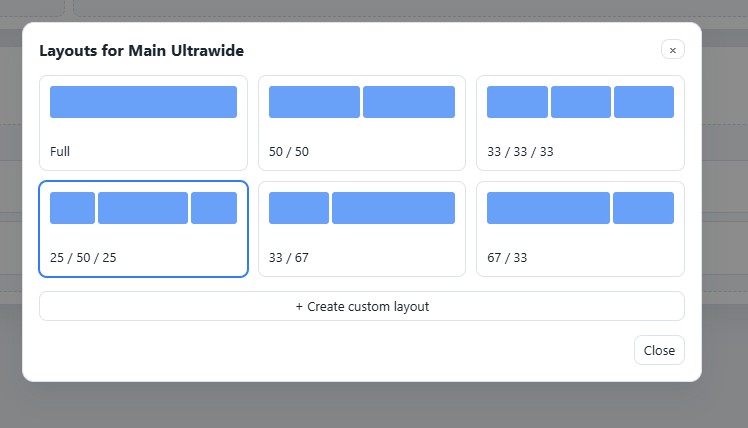
Use halves, thirds, quarters, 25/50/25, 66/33, 33/66, or your own custom column split on each display.
Chrome extension
ScreenTabs turns one or multiple monitors into reusable zones. Snap Chrome windows into place and save the workspace you use every day. Pro adds YouTube/video focus and fullscreen-style tools for keeping playback in its own area without taking over your entire monitor.
Available now on the Chrome Web Store.
Features
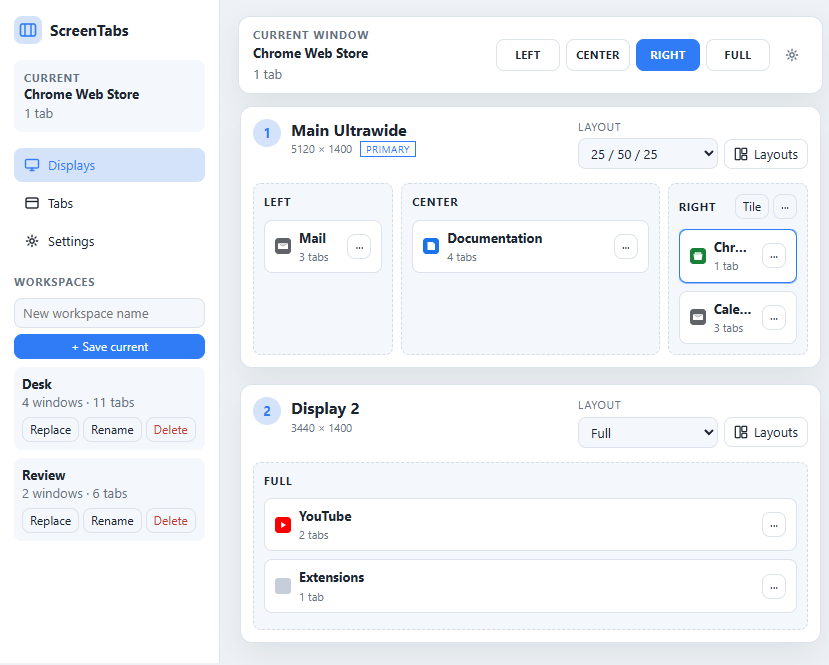
Use ScreenTabs when Chrome's basic split view is not enough and you want repeatable layouts across real monitors.
Use halves, thirds, quarters, 25/50/25, 66/33, 33/66, or your own custom column split on each display.
Move the current Chrome window into a zone instead of dragging and resizing it by hand every time.
Save the Chrome windows you use together and restore them later alongside what is open or after replacing the current workspace.
Pro can put supported video sites into a focused Chrome popup so the player fills its assigned area without taking over the entire monitor.
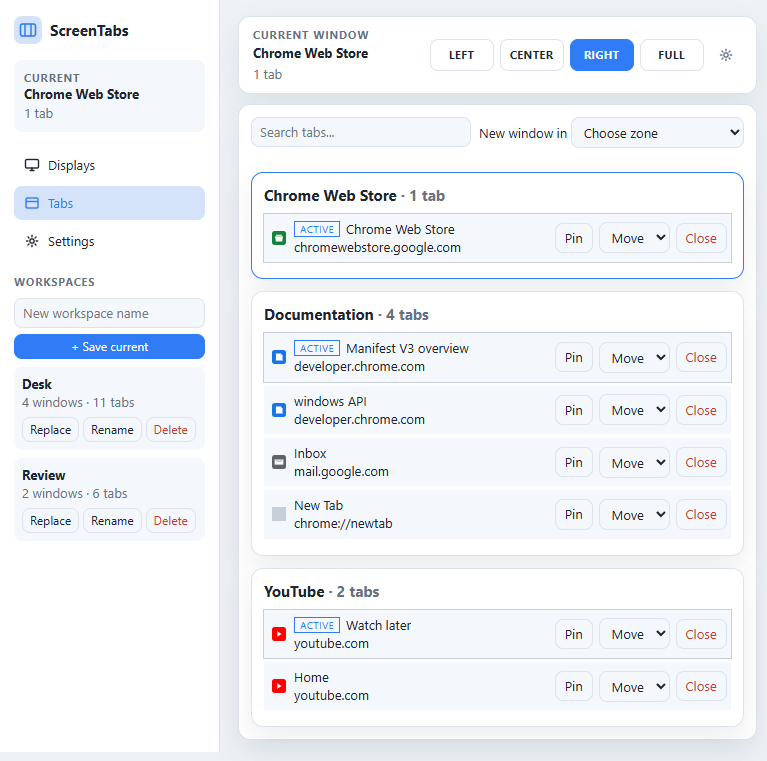
Activate, close, pin, move, and drag tabs between Chrome windows or displays from one manager.
Workspace and restore data stay in Chrome local storage. Your saved tab lists are not uploaded to ScreenTabs.
Chrome split screen
Chrome's built-in two-page split view is useful when two pages are all you need. ScreenTabs adds multi-zone layouts, multiple Chrome windows, per-monitor zones, and reusable workspaces. Pro adds YouTube/video focus and fullscreen-style playback tools. It organizes Chrome windows only. It does not create virtual displays or manage desktop apps.
Layouts
Choose a preset or make a 2- or 3-column custom layout such as 20/60/20. Each physical display can have its own arrangement.
Management
See your focused window, displays, tabs, and saved workspaces together. Move Chrome windows between monitors or restore a setup you use repeatedly.
Pricing
Start with the free extension from the Chrome Web Store. Upgrade only if the Pro workflow is useful to you.
Free
Core Chrome window organization without a paid account.
Pro
One payment. No recurring subscription.
What it does not do
ScreenTabs reads the physical displays Chrome can see. It does not create extra monitors.
It organizes Chrome windows and tabs. It does not move Cursor, PowerShell, games, or other OS applications.
Workspace and restore state stay on your device. Signed-in accounts can keep layouts and settings, not your saved tab lists.
Questions
Install ScreenTabs directly from the Chrome Web Store. After installation, pin ScreenTabs to the Chrome toolbar for quick access.
Yes. Core window, tab, layout, and manual workspace tools are free. YouTube/video fullscreen-style focus tools are Pro features. Pro is a $24 lifetime upgrade.
No. Video Focus and ScreenTabs' fullscreen-style playback tools are part of Pro.
No account is required for the core free organization features. An account is used for the Pro purchase and for account-backed layouts and settings.
No. Open windows and tabs are read so ScreenTabs can organize and restore them, but saved workspace and restore state stay in chrome.storage.local. See the privacy page.
Yes. Layouts and zones work on a single display. Multiple monitors simply let you assign a different layout to each physical screen.
Chrome's built-in split view is great for two pages in one window. ScreenTabs adds reusable multi-zone layouts, multiple Chrome windows, monitor-specific arrangements, and saved workspaces. Pro adds video focus and fullscreen-style playback tools.
No. ScreenTabs Pro is a $24 lifetime purchase. Sign in to your ScreenTabs account, complete checkout, then use the same account in the extension.
No. ScreenTabs is intentionally a Chrome extension and manages Chrome windows and tabs, not Windows or macOS applications.
Get started